Getting started with Steward
There is more under the surface of Steward than the first few screens suggest. This guide walks through it in order, from your first morning check-in to the Brain Operating Manual. Read it end to end, or jump to the part you need.
Getting Started
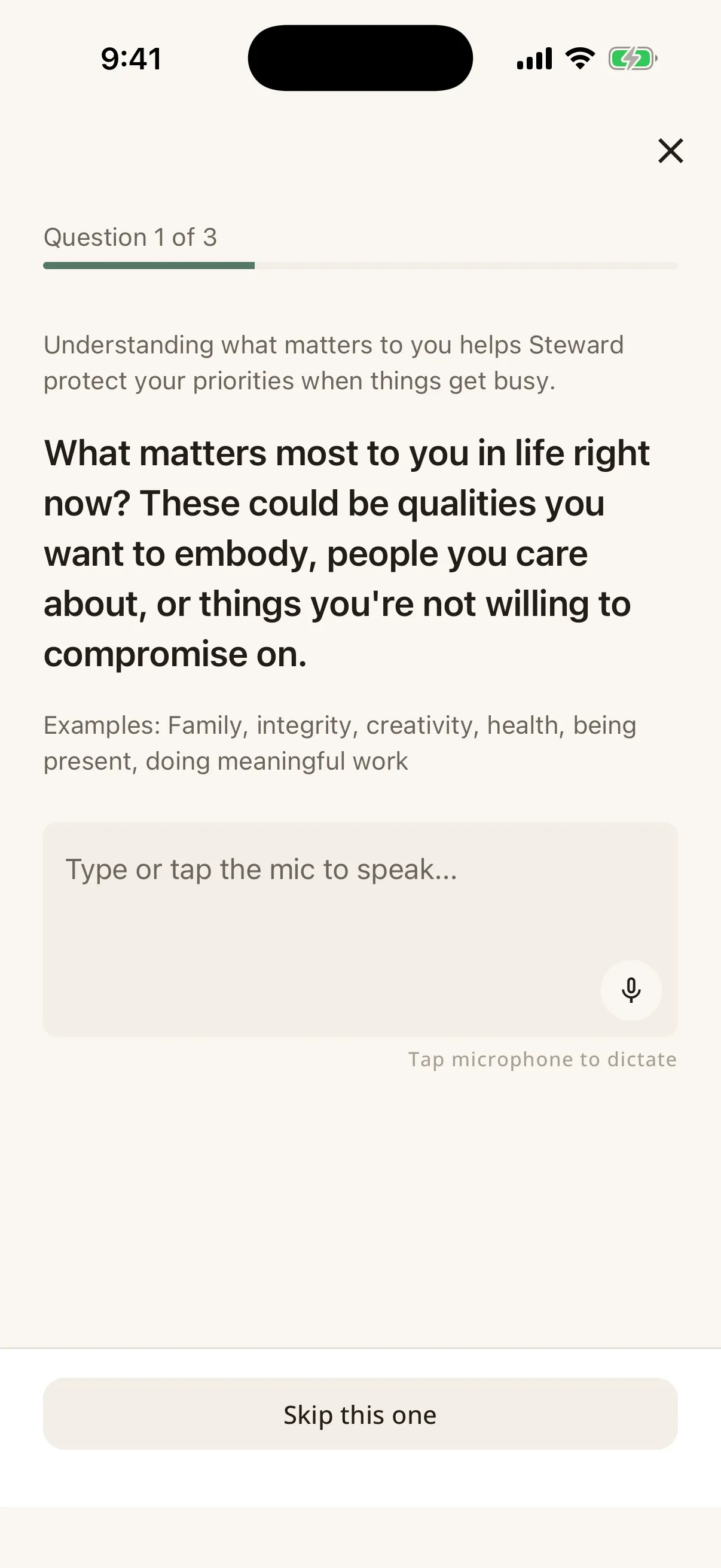
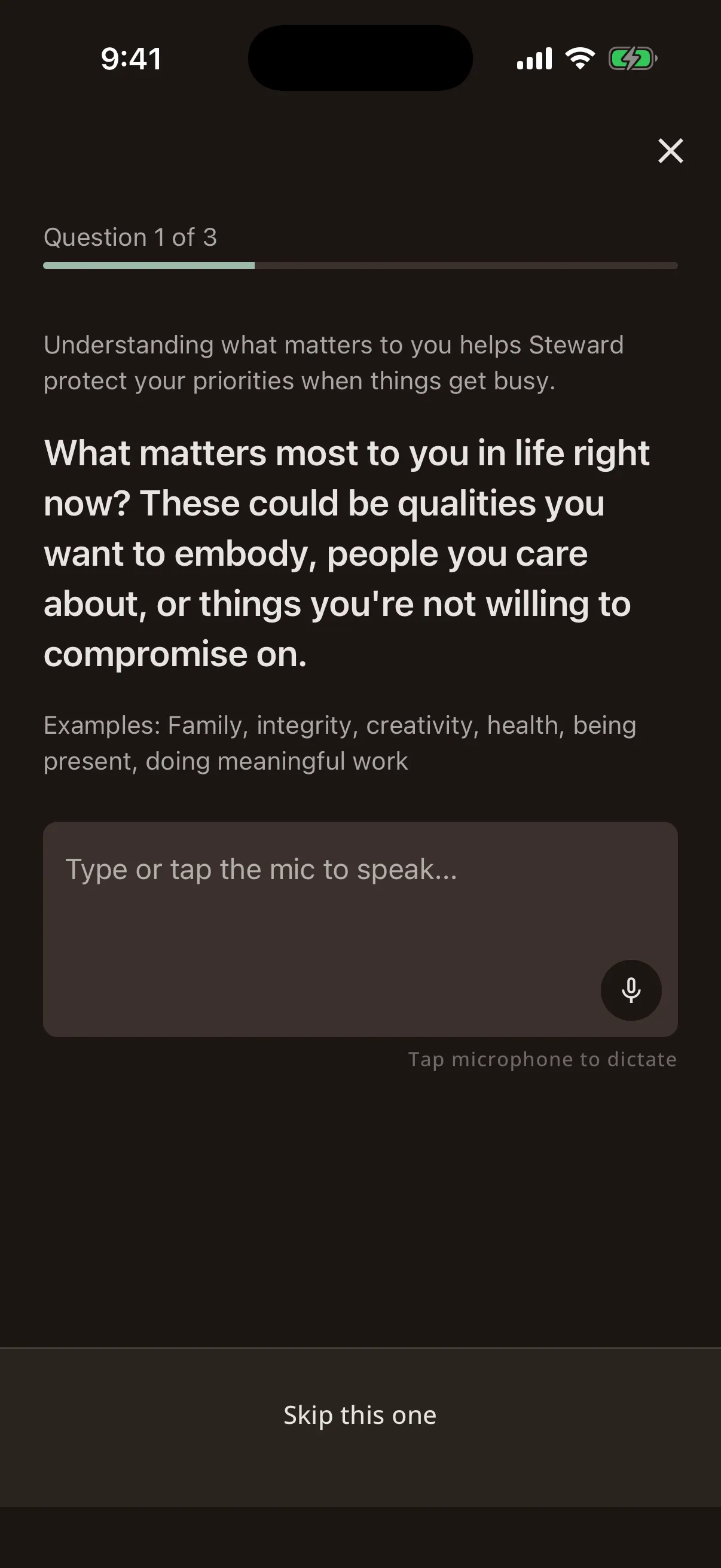
When you first open Steward, you'll go through a short onboarding flow. It asks a few questions about how you work best: things like your typical work hours, energy patterns, and what matters most to you.
These answers feed into your Brain Operating Manual (more on that later) and help Steward personalise your experience from day one.
There's no wrong answer. Be honest, and you can change everything later.
Your Morning Check-in
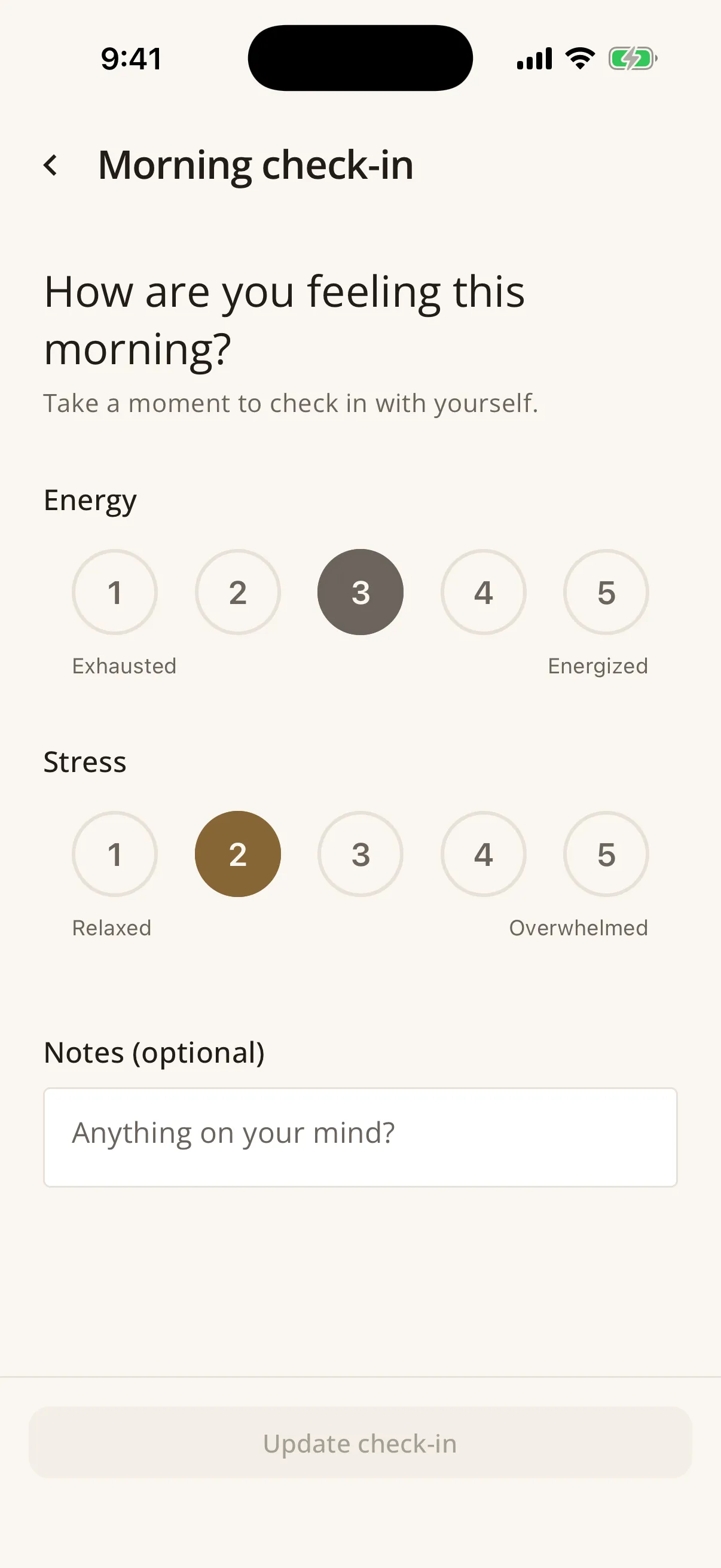
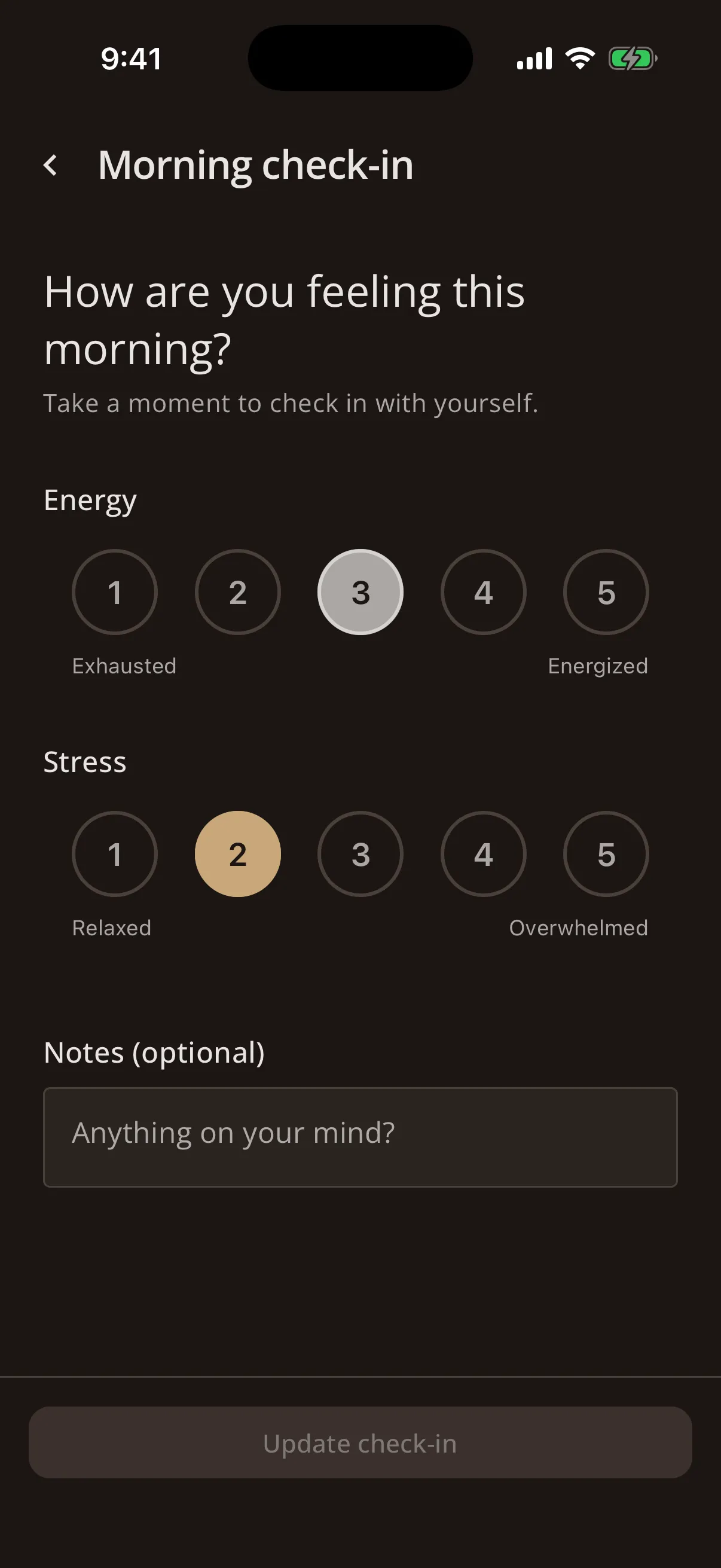
Each day starts with a quick check-in: how are you feeling today? You rate your energy and stress levels, which takes about 10 seconds.
Steward uses this to calculate your capacity for the day. On high-energy days, your full plan is available. On tough days, Steward automatically scales back and focuses on what truly matters.
This is the core of what makes Steward different: it adapts to you, not the other way around.
The NOW Card
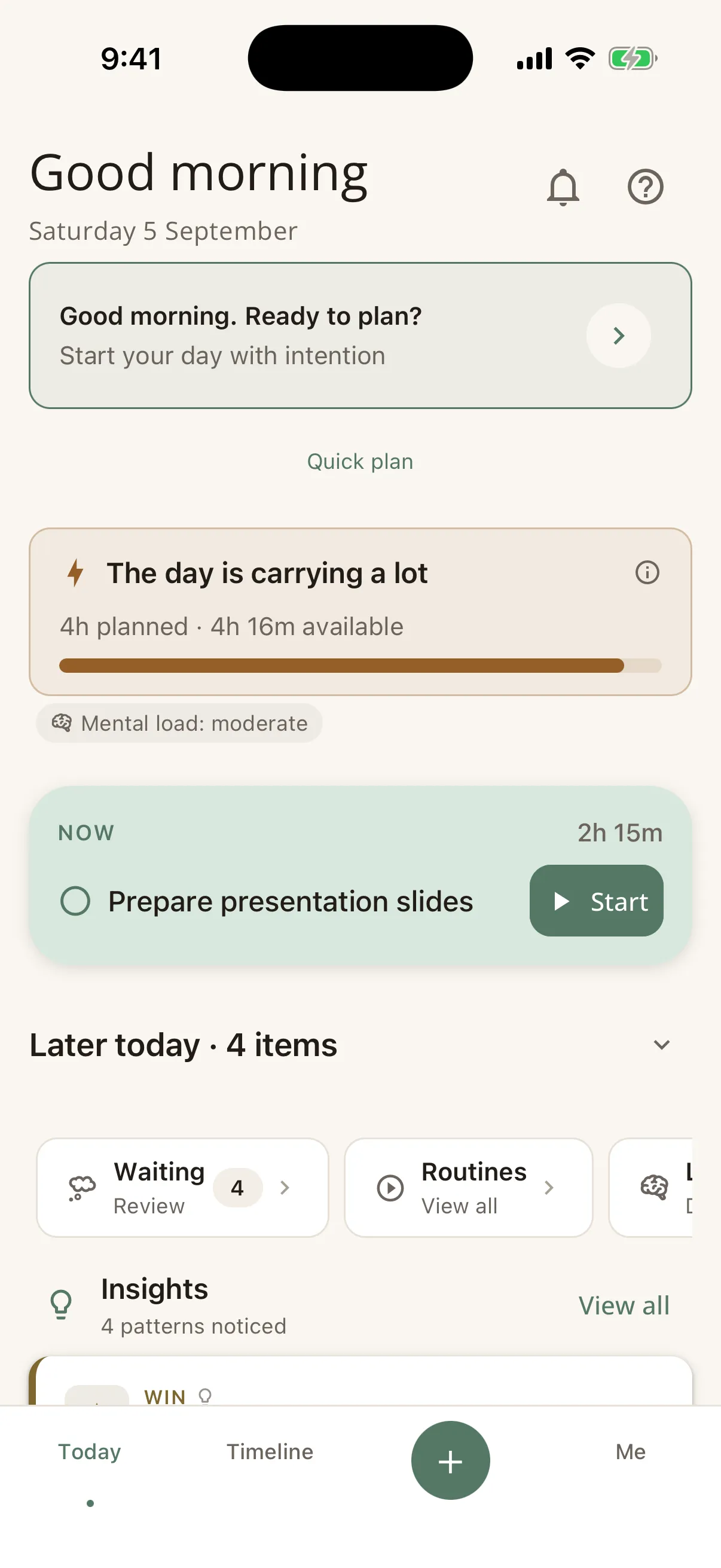
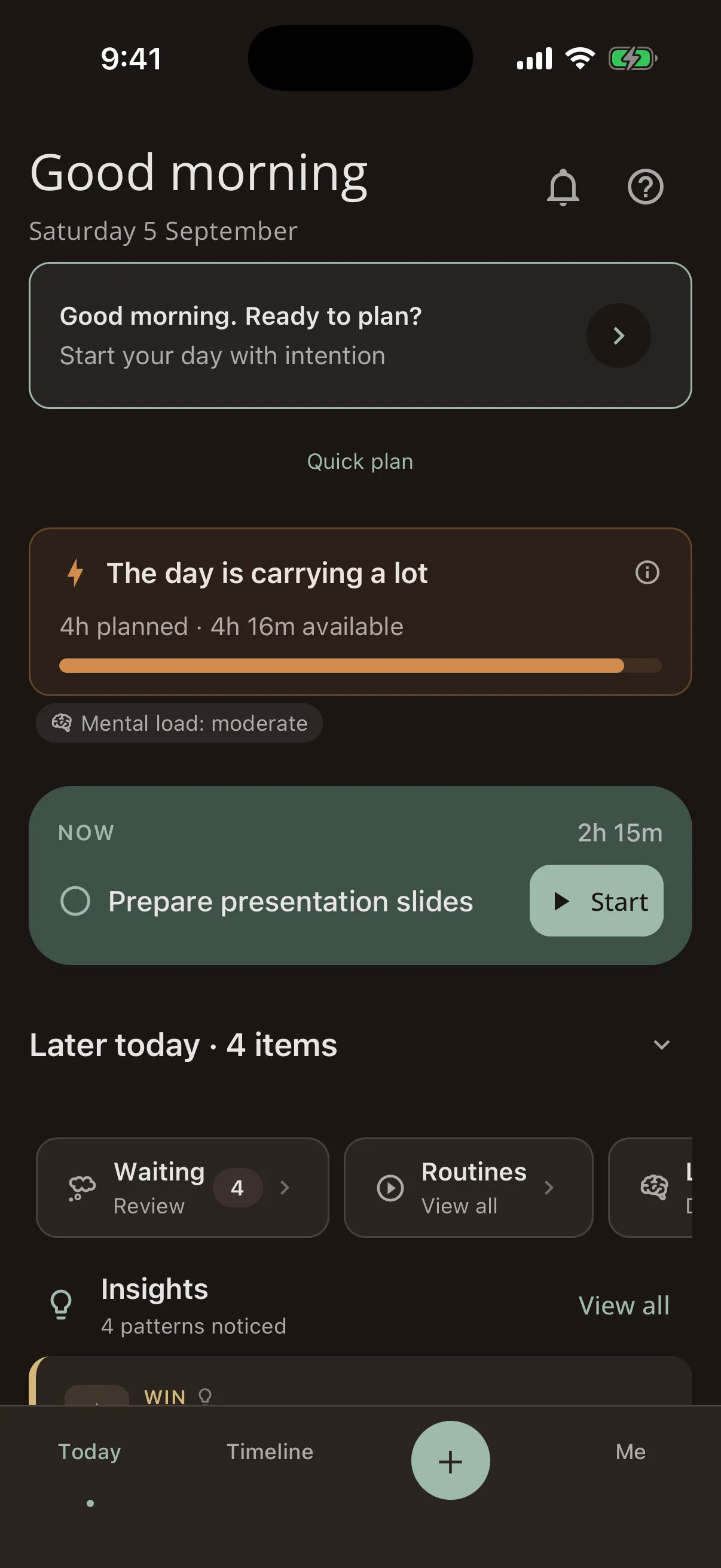
The NOW Card answers the question: "What should I do right now?"
It looks at your energy, your calendar, your priorities and the time of day, then gives you one clear suggestion: one thing, right now, instead of an endless list.
You can act on it or leave it for now; the suggestion adapts as your day and energy change. It works like a friend who knows your schedule and offers one idea at a time.
Planning Your Day
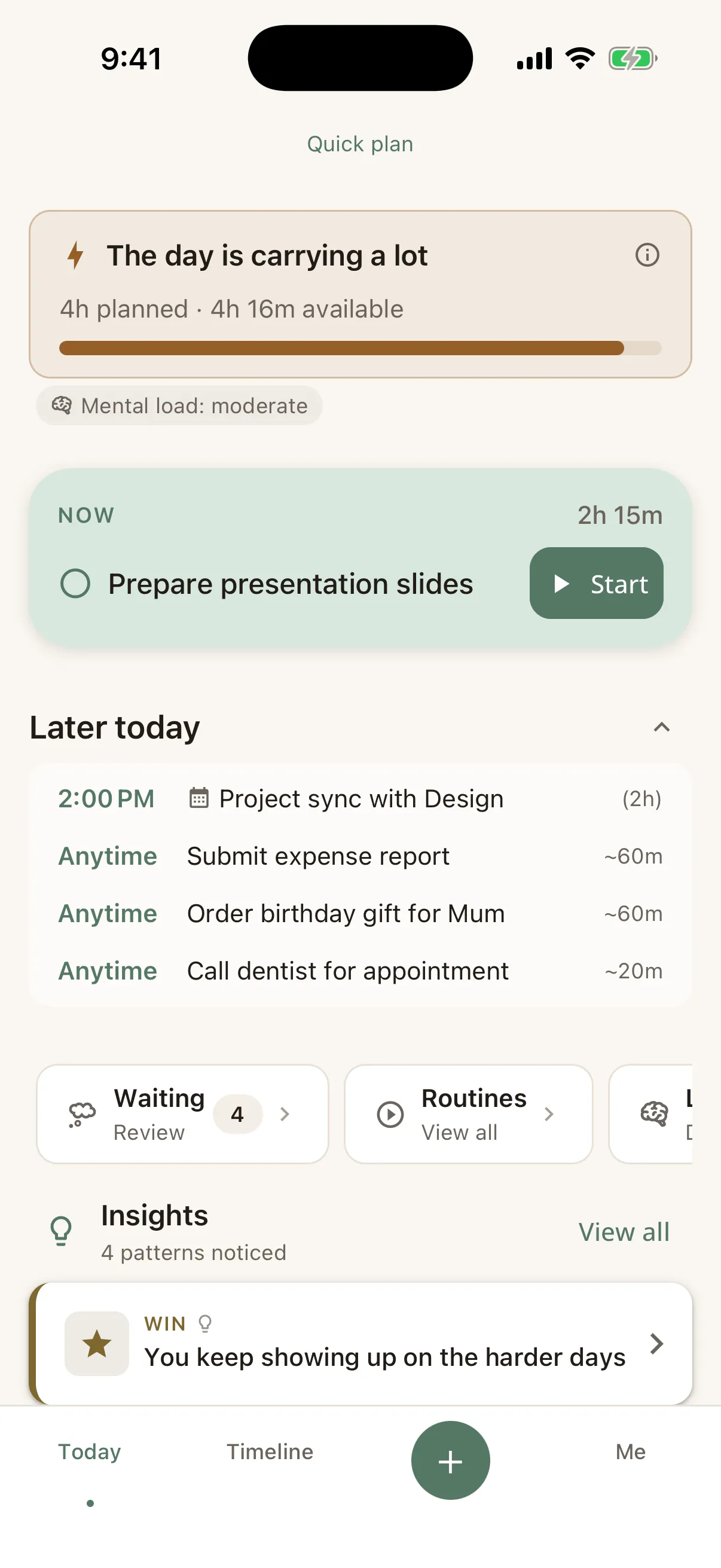
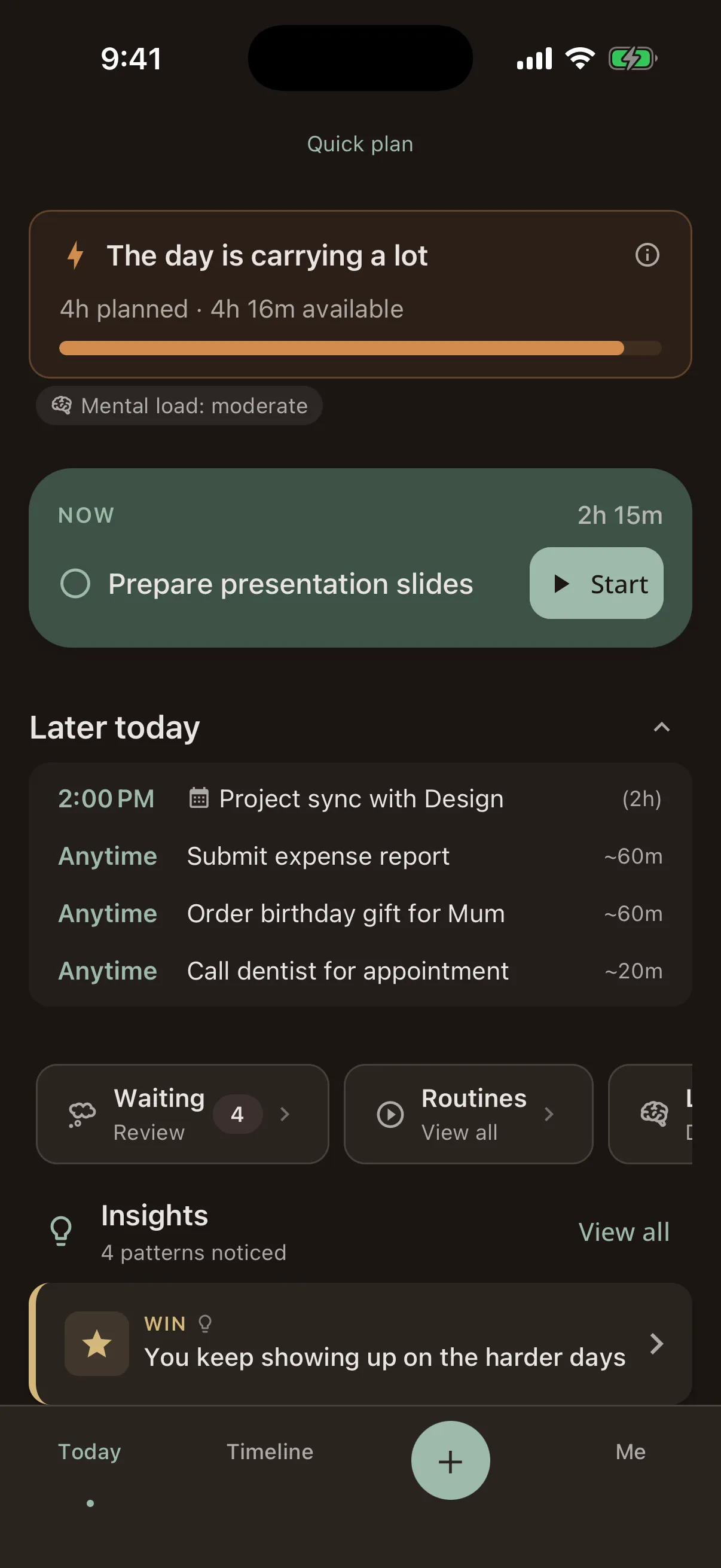
- Key Tasks: Each day, pick up to 3 key tasks: the things that would make today feel like a win. Steward tells you when the plan is holding more than your capacity allows.
- Waiting Items: Tasks without a specific time slot. They stay saved until you're ready for them. Drag them into your day when the moment feels right.
- Scheduling: Tap any task to assign it a time. Steward respects your calendar events and won't double-book you.
- Checklists: Organise tasks into Today, Work, Personal, and Admin lists.
- Rescheduling: Plans change. Steward makes it easy to move things around, and "Ready when you are" replaces the language of lateness.
- Calendar: Connect your calendar to see events alongside your tasks. Steward respects your existing commitments when calculating capacity and making suggestions.
- Rotas: For recurring schedules like co-parenting, on-call rotations, or shift work. Define your rota once, and Steward factors it into your plan automatically.
- Notes: Capture thoughts, meeting notes, or ideas. Steward's AI can scan your notes to extract tasks and waiting items, so a passing thought is saved where you can find it.
Recalibrate
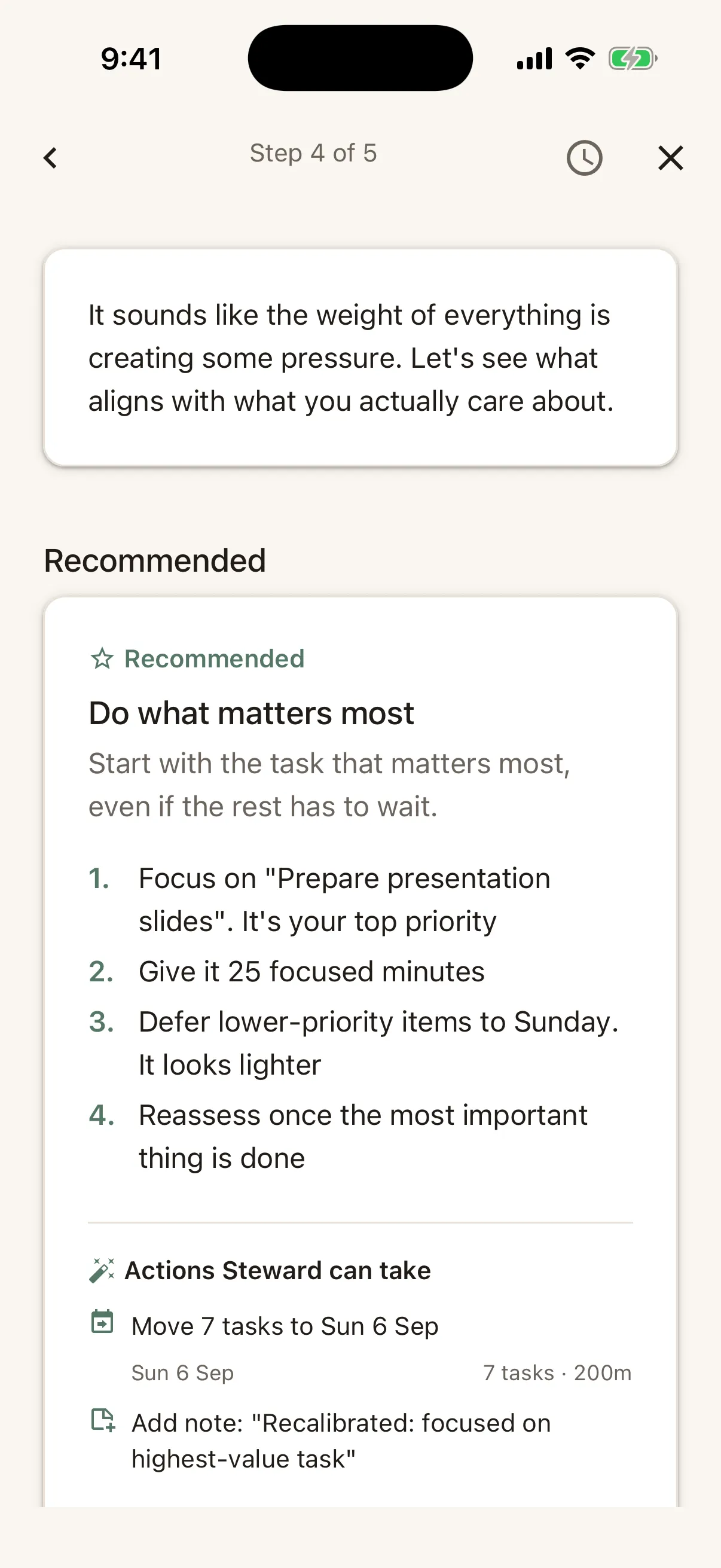
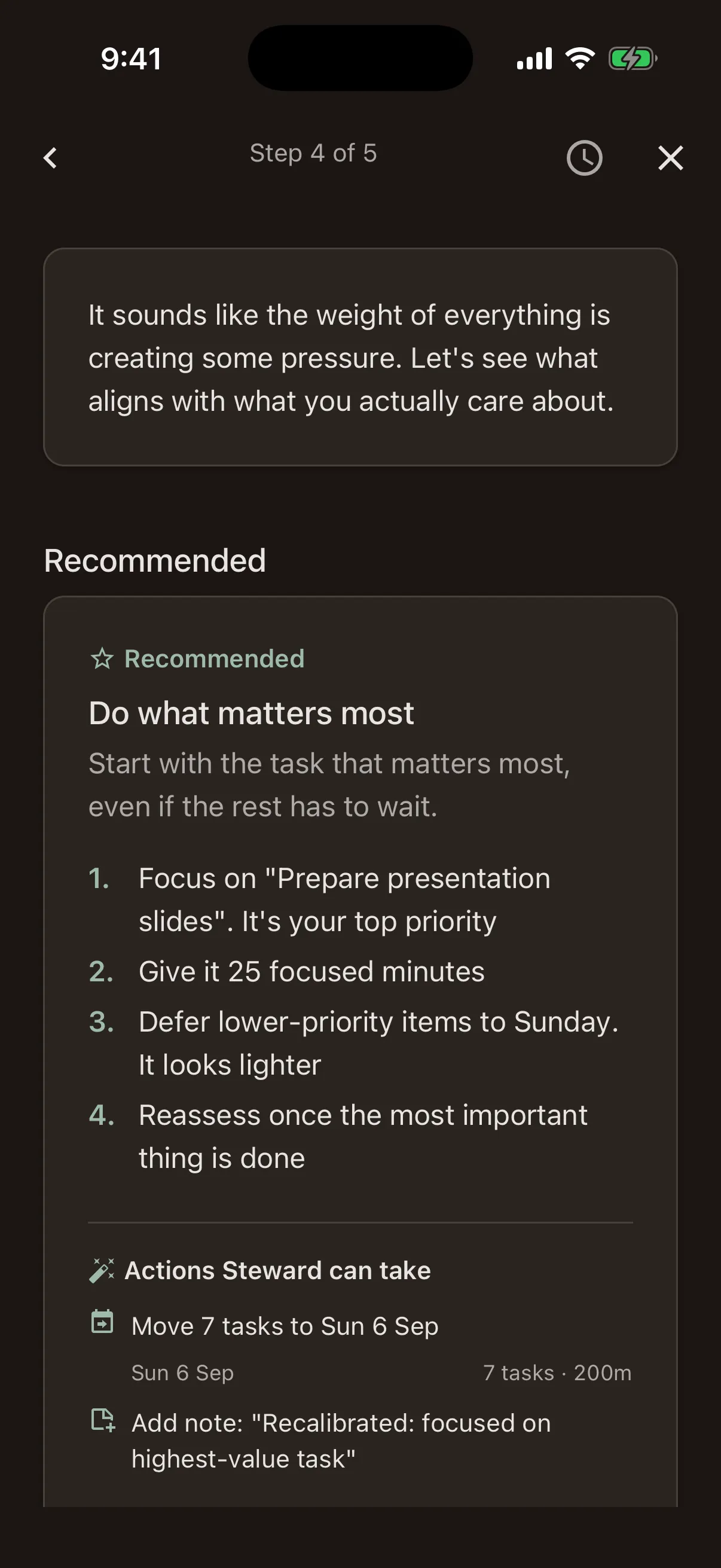
Plans rarely survive contact with reality. A meeting overruns, your energy crashes, something urgent lands in your lap. Recalibrate is Steward's answer to the question: "Everything's changed, so now what?"
It's a guided wizard that walks you through the moment:
- Context: Steward gathers what it knows: your energy, calendar, tasks, and capacity.
- Intake: You share what's happening, with a quick description and a few signal checks.
- Generate: Steward analyses everything and builds a recommendation. You'll see a calm progress screen while it works.
- Results: A suggested path forward: what to keep, what to move, what to let go. It also flags blind spots and offers alternatives.
- Wrap-up: Reflect on the session and save useful insights to your Brain Operating Manual for next time.
You can trigger Recalibrate any time from the app, or it appears automatically as "Recalibrate this moment" when the Overwhelm Firewall detects you're overloaded. Adjusting your plan mid-day is a skill, and Steward helps you practise it.
Safe Mode
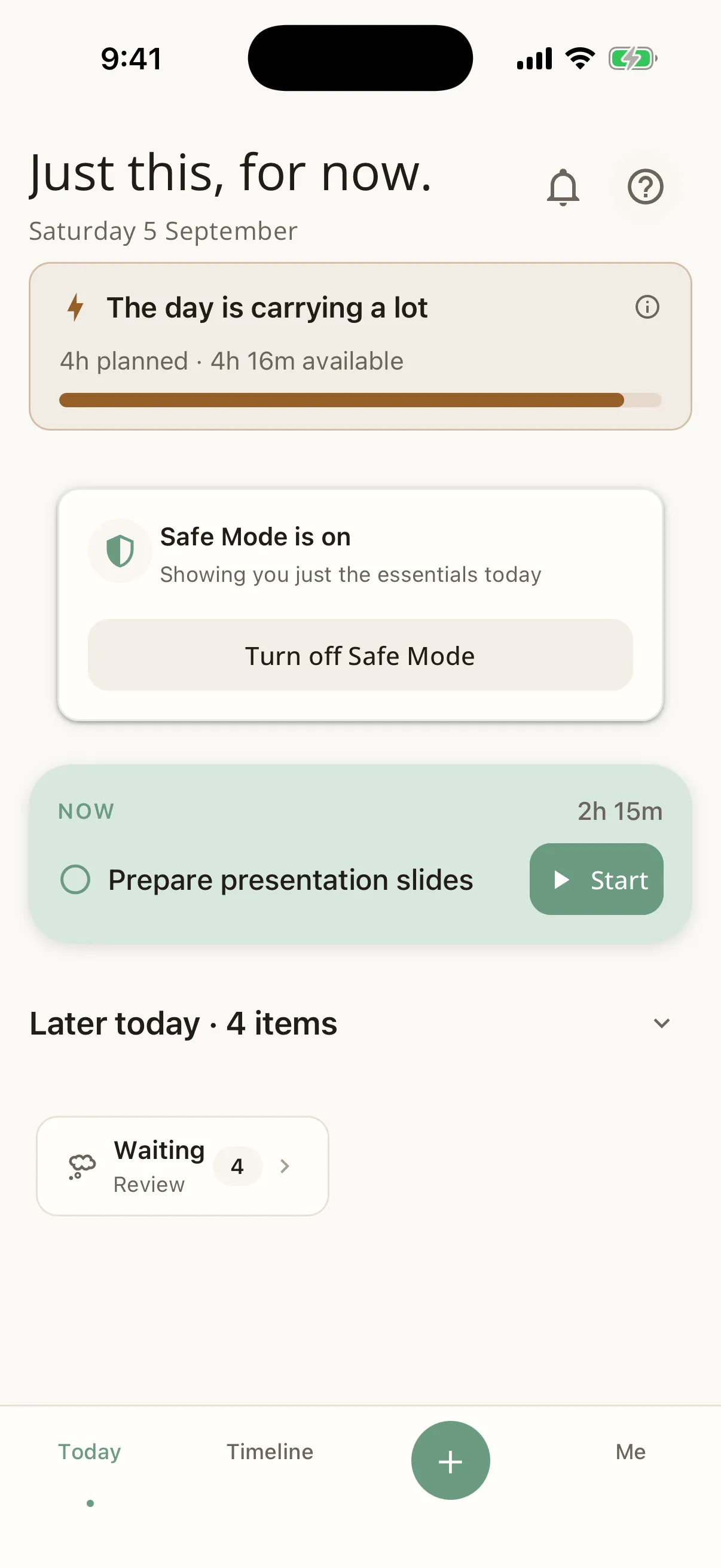
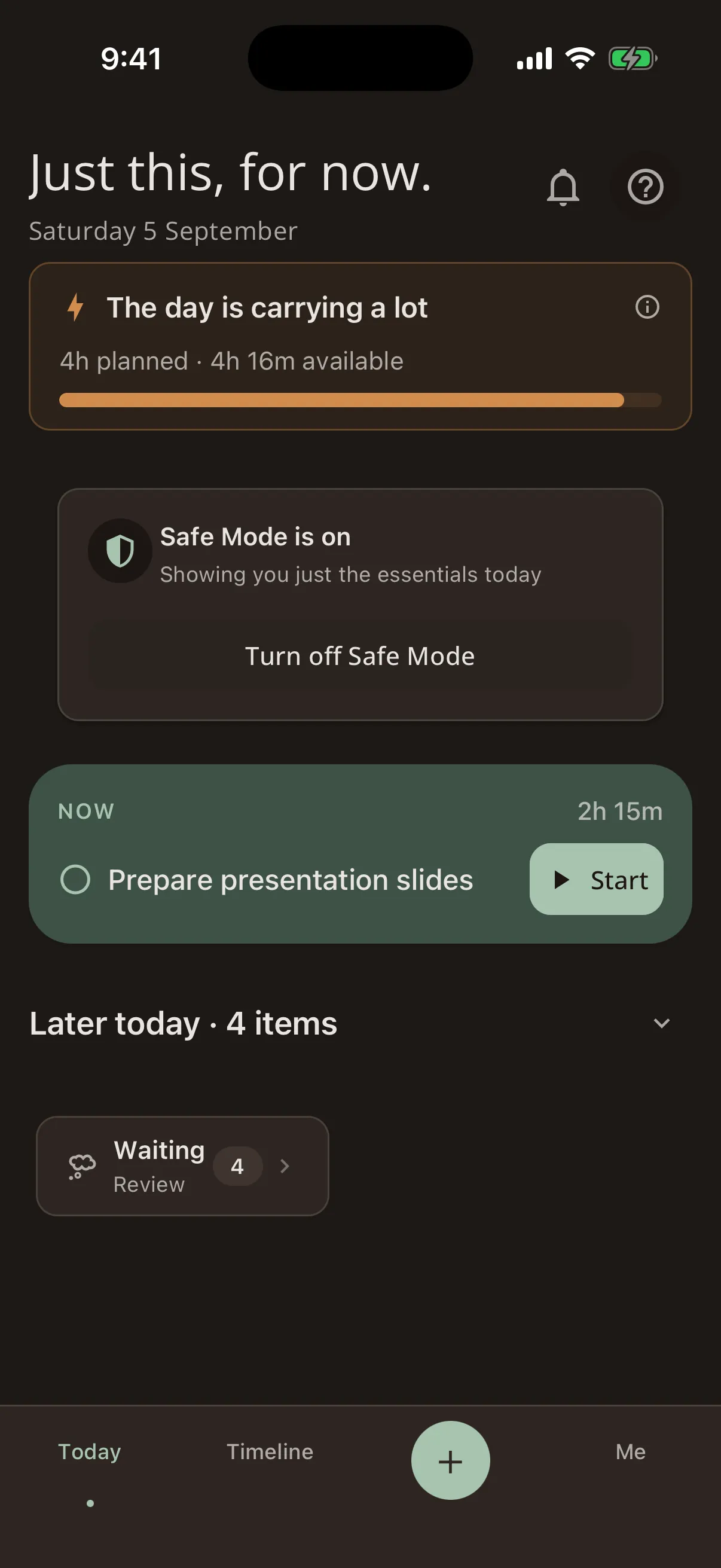
Some days are harder than others. Safe Mode is a simplified interface that strips away everything non-essential so you can focus on just the basics.
When Safe Mode is active:
- Non-essential features are hidden
- Non-critical reminders are muted
- The interface is calmer and less cognitively demanding
- You see only what you truly need right now
You can turn Safe Mode on manually any time from Settings, or Steward may suggest it during a Recalibrate session. It's there when you need it and invisible when you don't.
Routines & Rituals
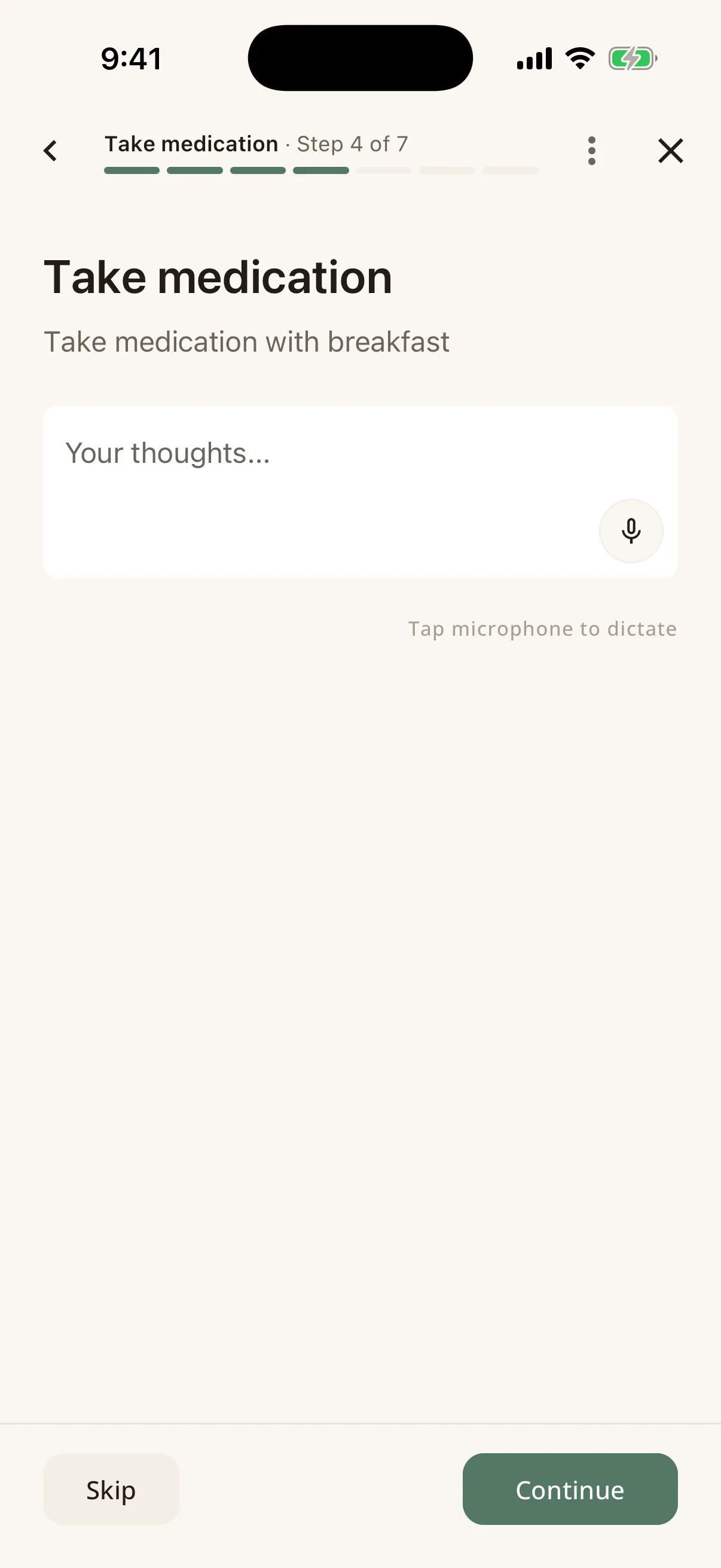
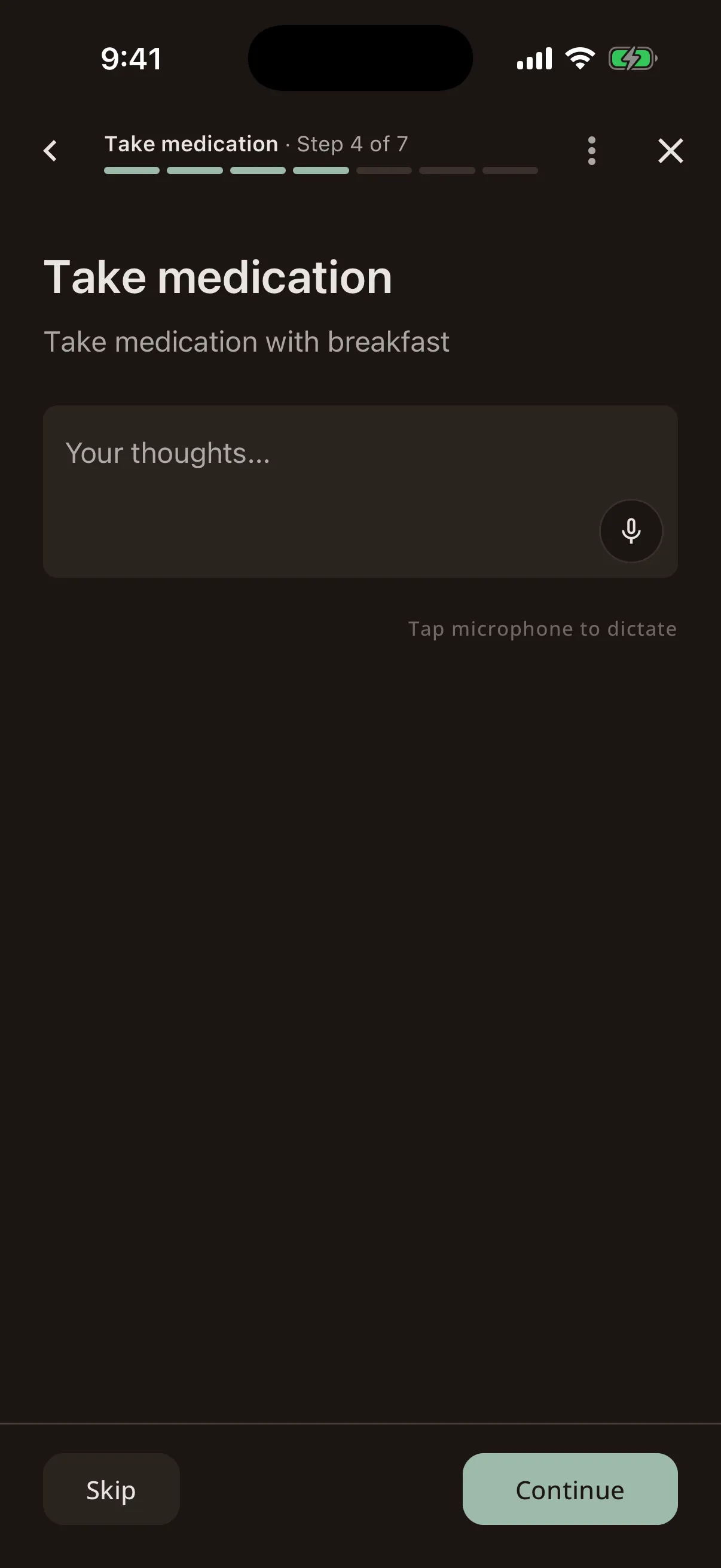
- Morning & Evening Rituals: Customisable step-by-step flows to start and end your day. Add your own steps, anything from "Take medication" to "Review tomorrow's calendar".
- Weekly Review: Once a week, Steward helps you reflect on what went well, what was hard, and what to adjust. If you have AI features enabled, it can summarise patterns from your week.
- Consistency without streaks: Steward tracks your routines but never shows streak counts or marks a missed day against you. The goal is sustainable habits, not perfect records.
Focus Timer
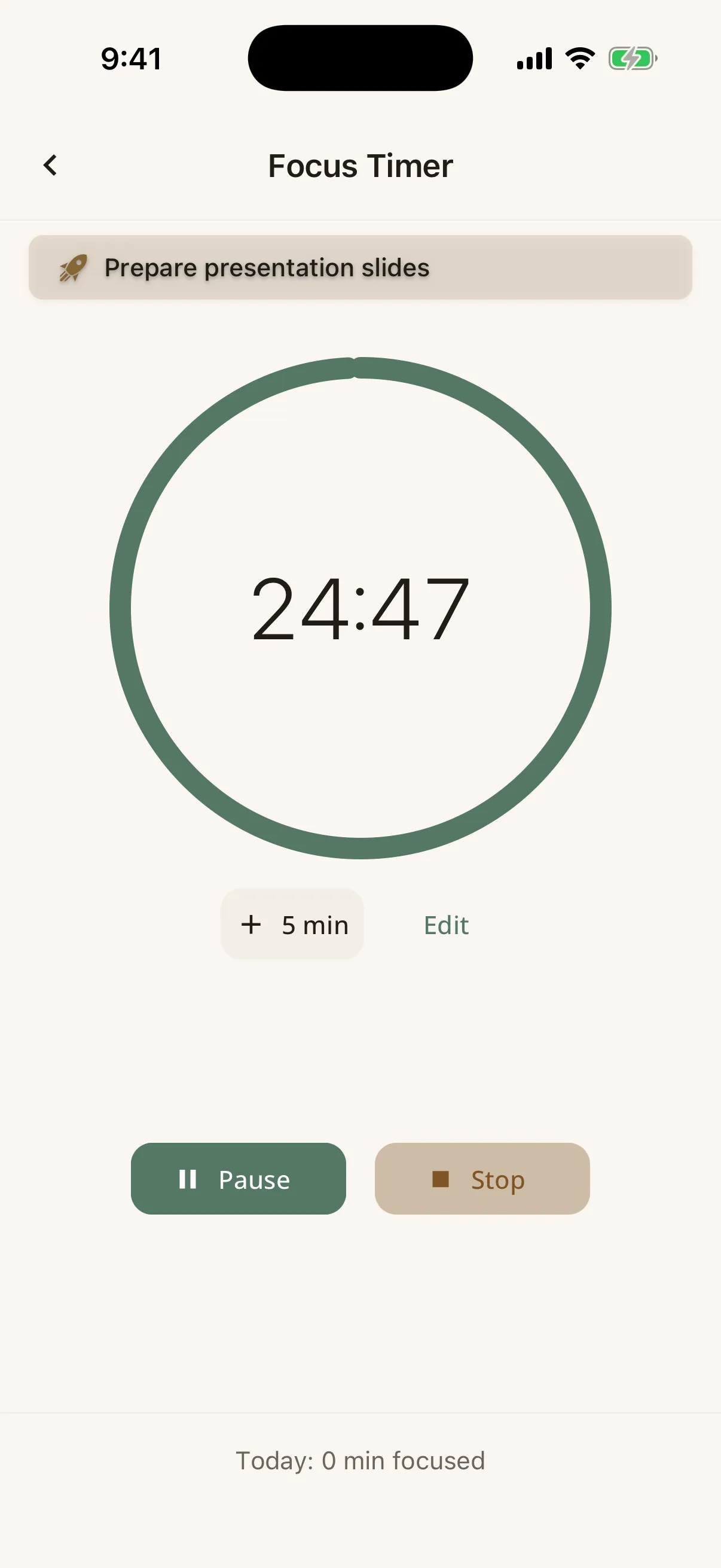
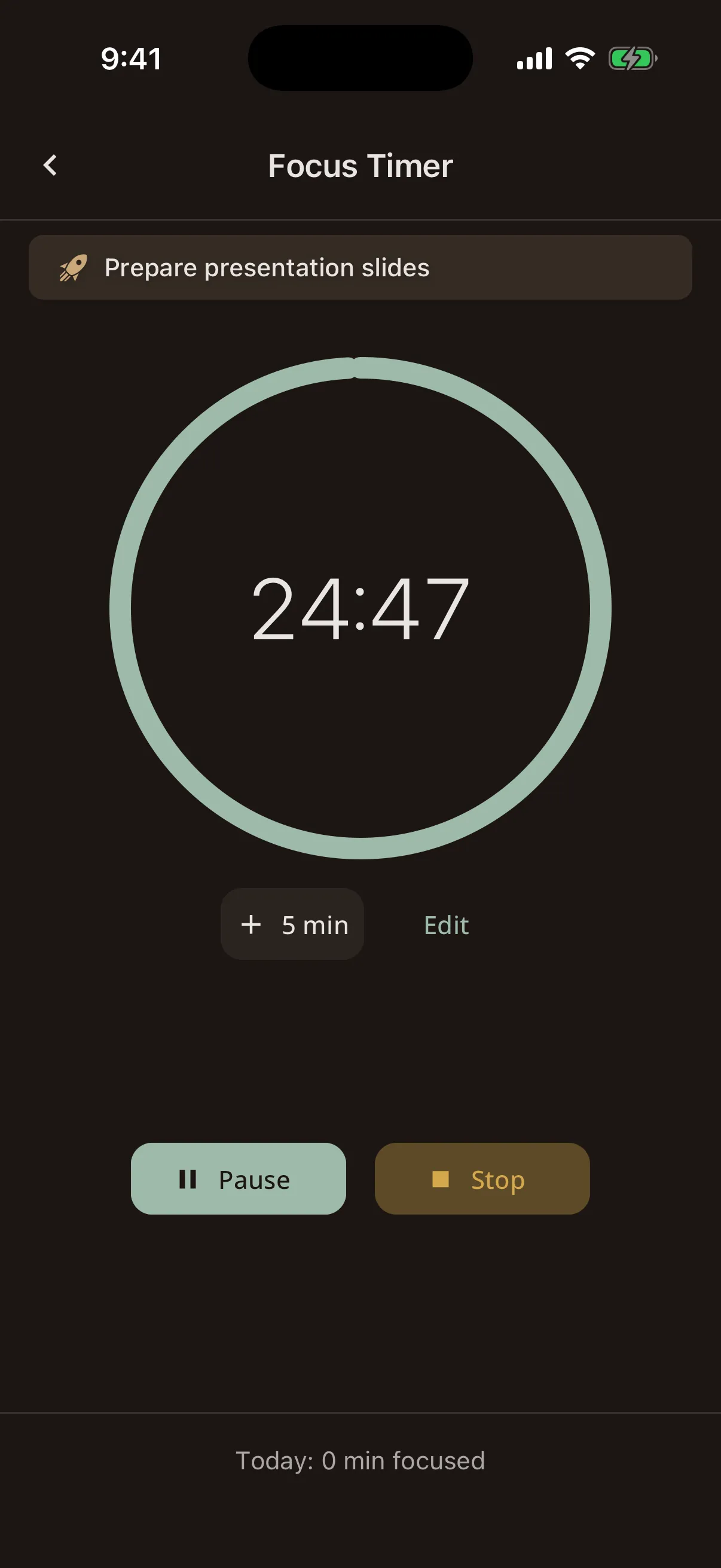
A built-in focus timer that you can link to any task. Start a session, work until the timer ends (or stop early, which is a normal thing to do), then do a quick debrief.
The debrief asks: how did it go? This feeds into your patterns over time. Sessions are logged in your history, so you can see how you spend your focused time.
Projects (Big Rocks)
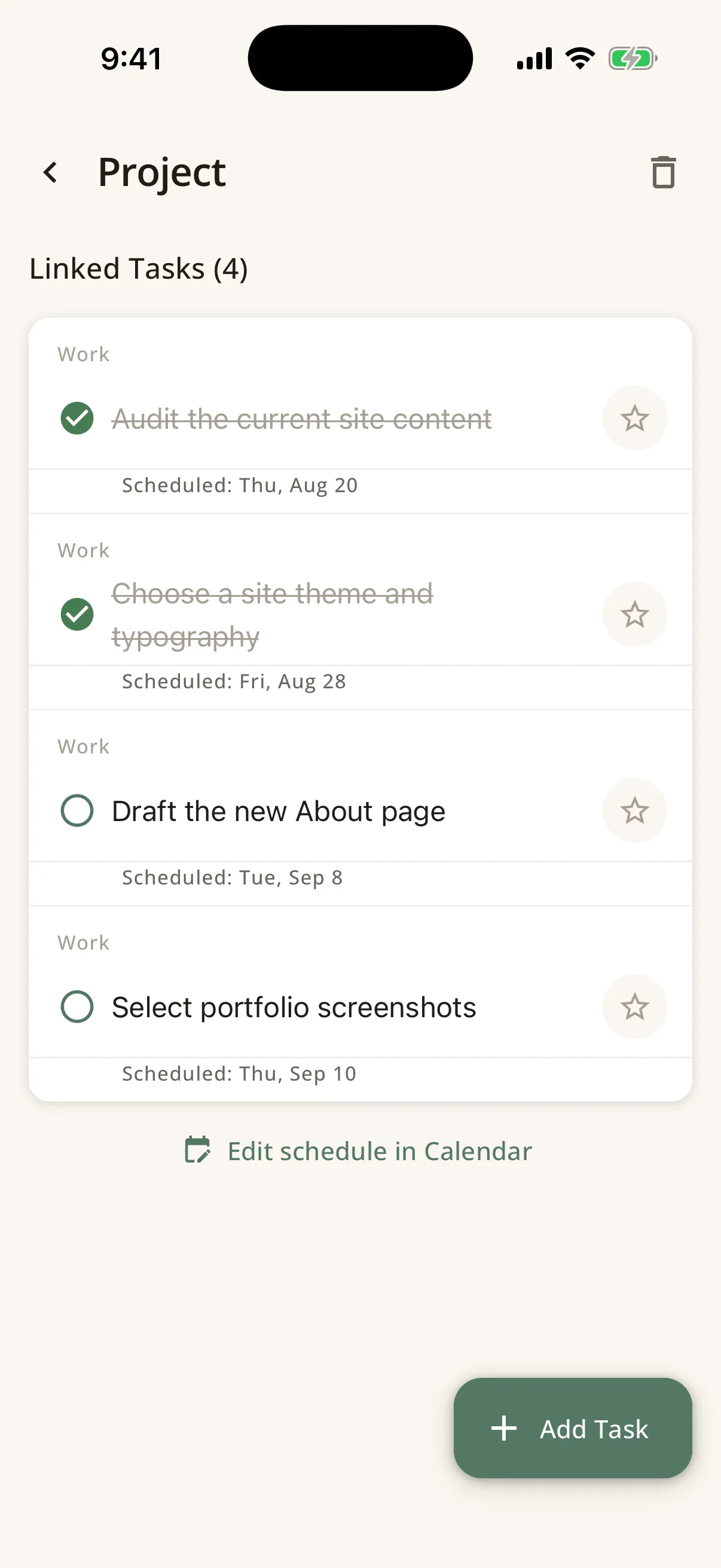
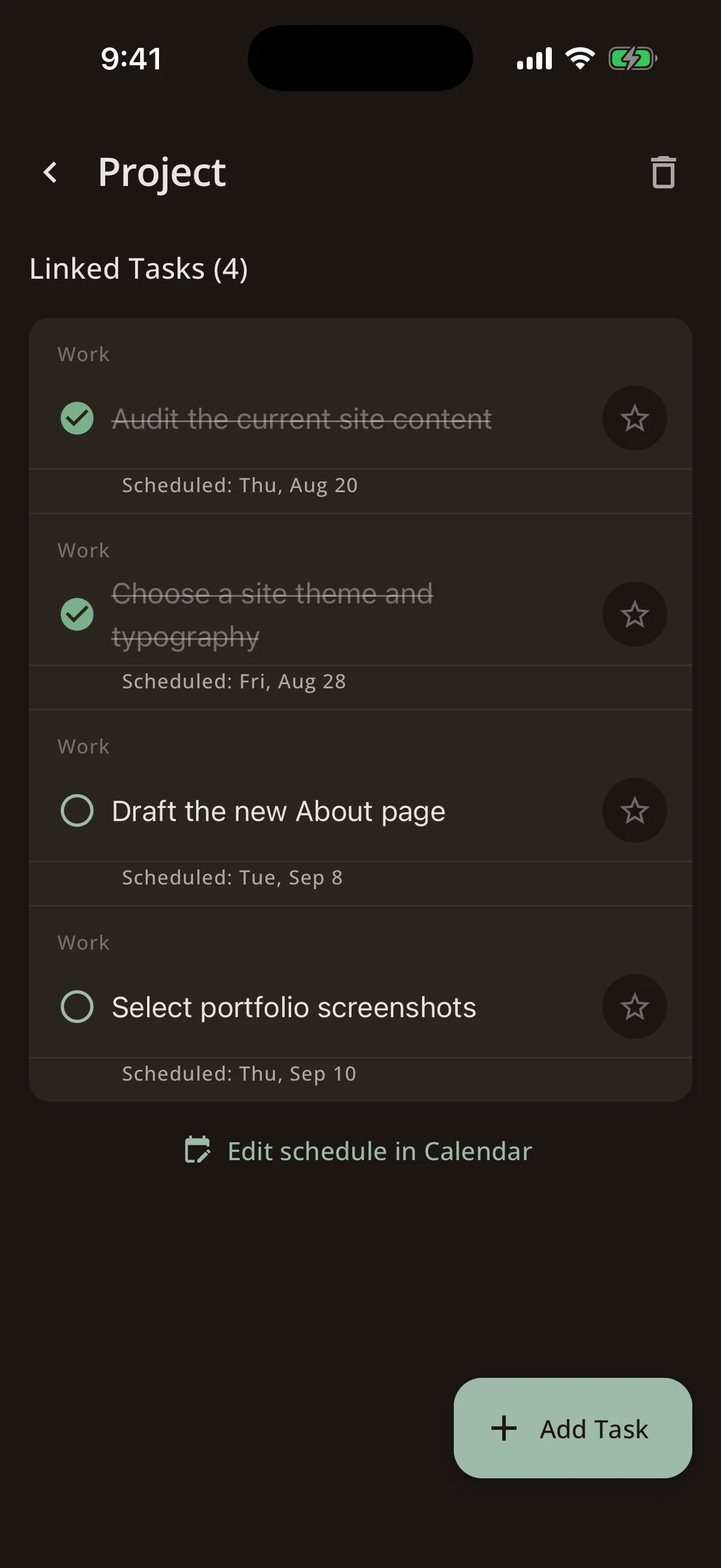
Big Rocks are the long-term projects and goals that matter most to you. Link tasks to projects to track progress over time.
Steward helps you make steady progress on what matters without letting urgent-but-unimportant tasks crowd them out.
The "Big Rock" metaphor comes from the idea that you need to put the big rocks in the jar first, before the sand fills it up.
AI Features
AI features are entirely optional. Everything in the core runs without them.
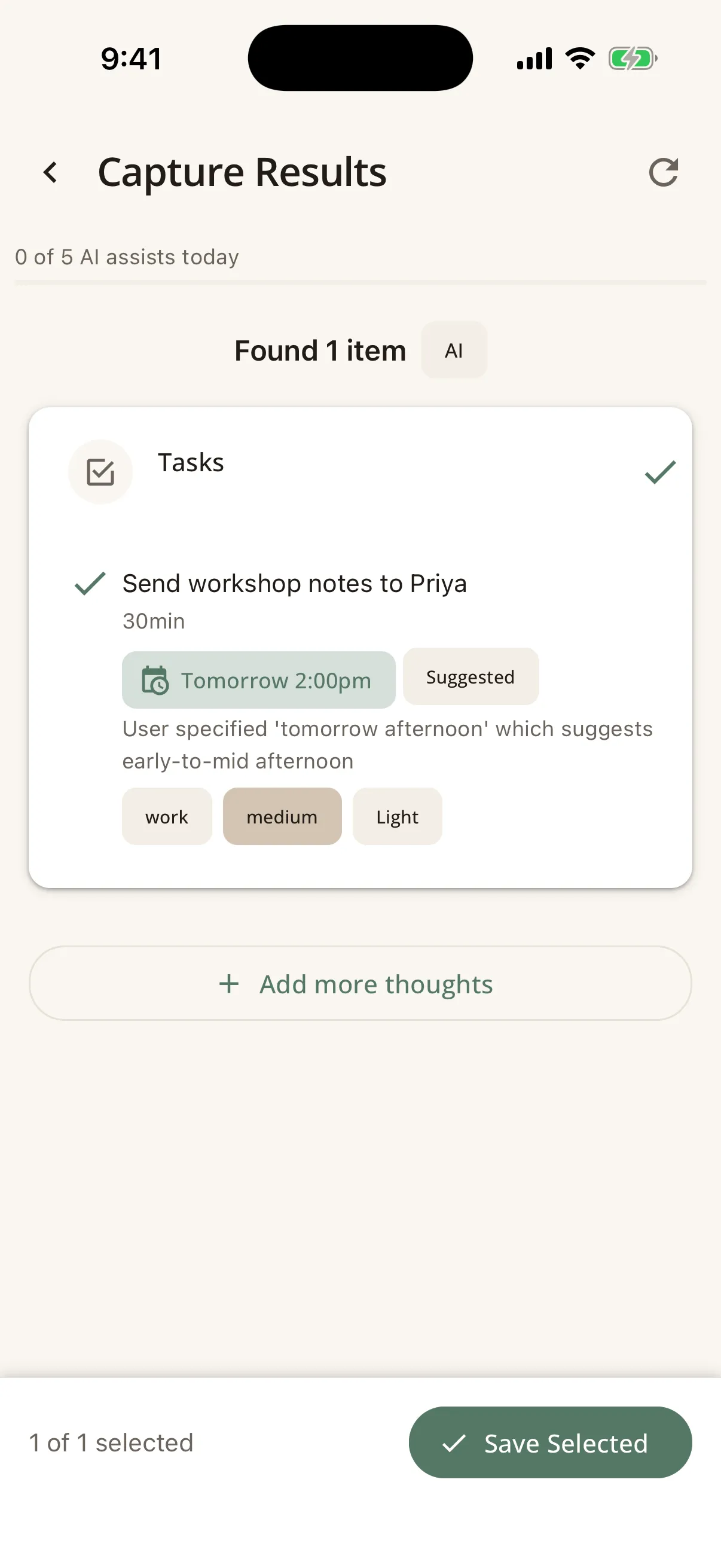
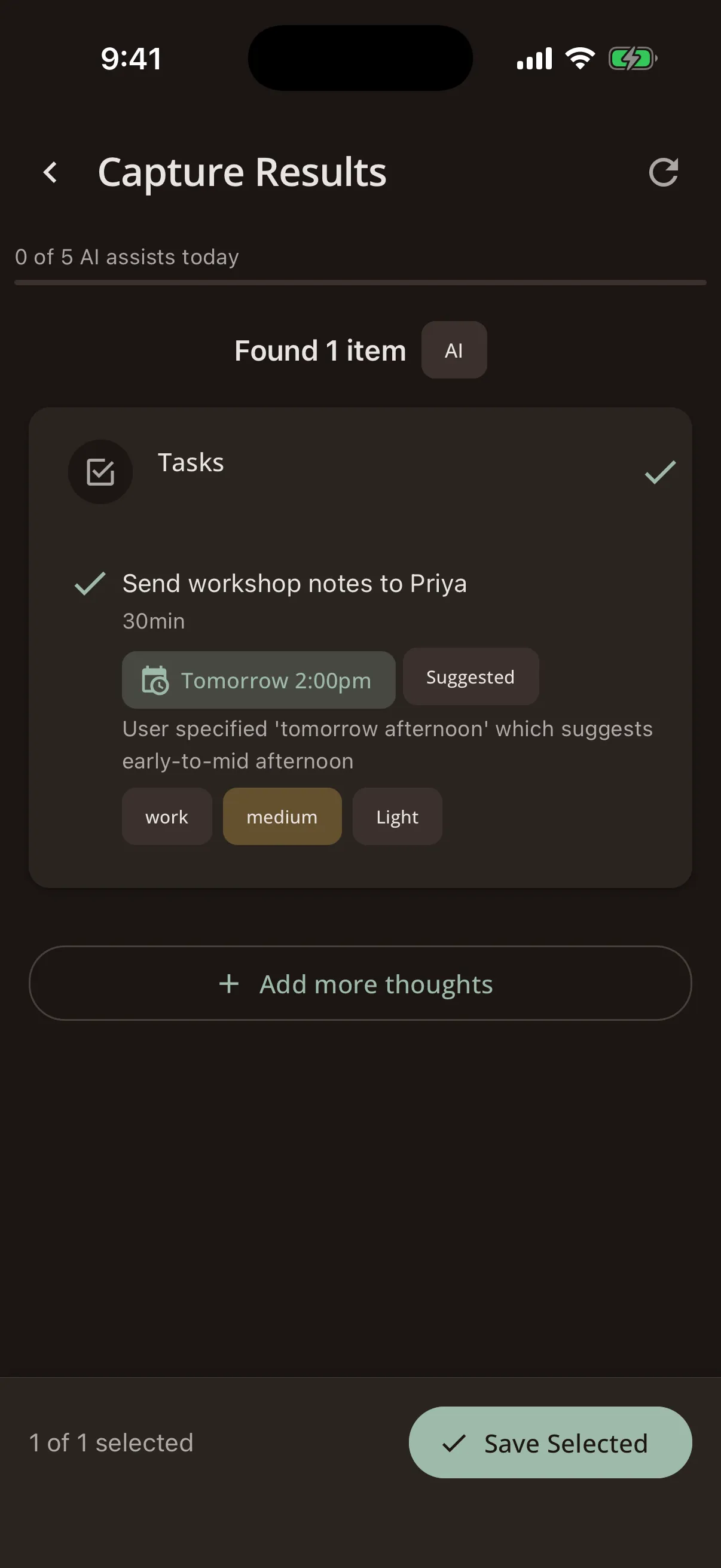
- AI Capture: Speak or type a thought, and Steward's AI turns it into a structured task with the right context, priority, and scheduling suggestions.
- Task Breakdown: Struggling to start something? AI can break a large task into smaller, manageable steps.
- Enhanced Weekly Reviews: AI summarises your week's patterns, highlights what went well, and suggests adjustments.
- Recalibrate: When your day goes sideways, Recalibrate uses AI to analyse your situation and suggest a realistic adjusted plan, including what to keep, defer, or let go.
- Notes Intelligence: AI scans your notes to extract tasks, waiting items, and Manual suggestions, so a quick brain dump turns into structured actions.
- Privacy: If you use the Steward relay, your data is forwarded to the AI provider, then discarded. If you use your own key (BYOK), requests go directly from your device to the provider.
- Your choice: AI features require a subscription (Steward AI or BYOK). See our pricing page for details.
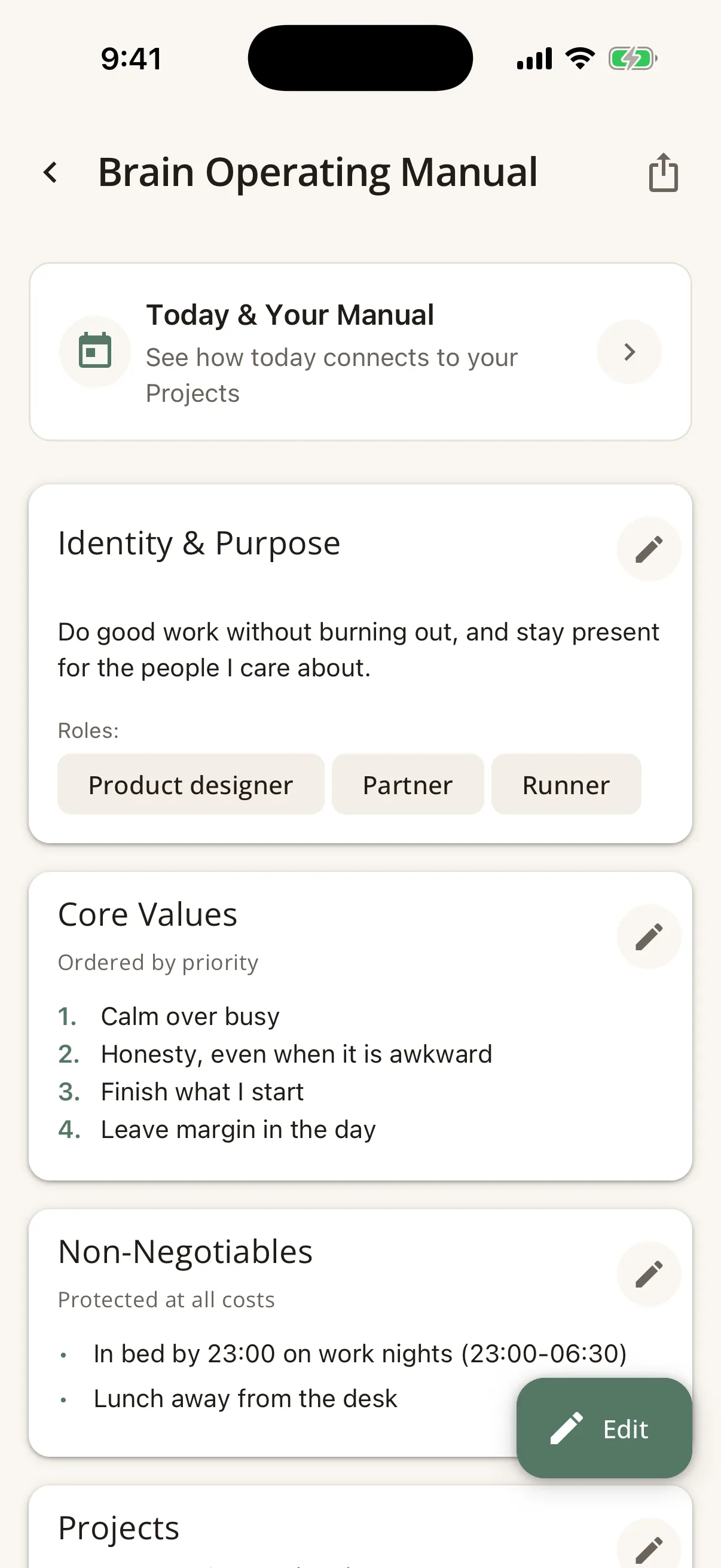
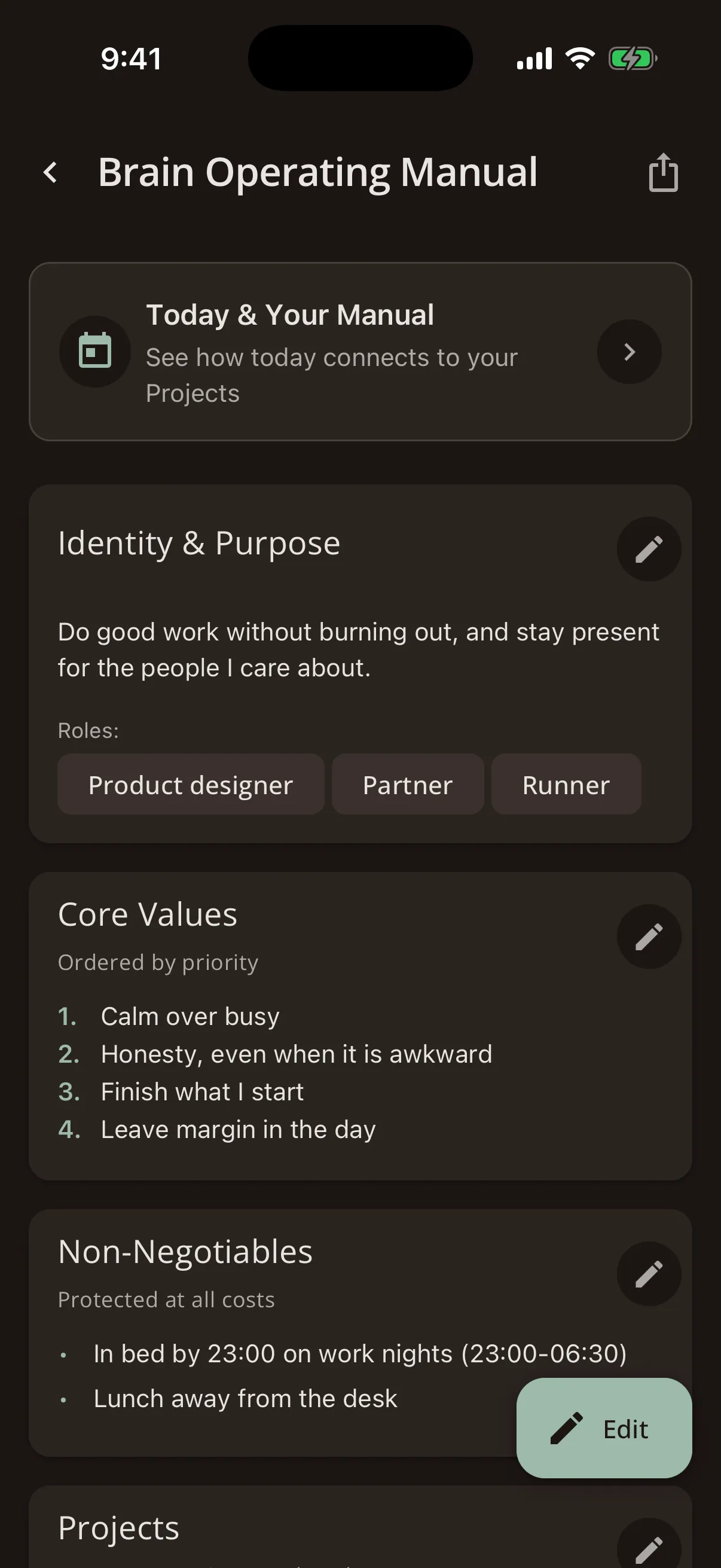
Brain Operating Manual
The Brain Operating Manual is a living document about how your brain works.
It captures things like: your values, your non-negotiables, when you do your best work, your overload warning signs, what helps when you're stuck, and your crisis protocol.
Steward uses this to personalise suggestions, calibrate capacity, and offer the right support at the right time. You build it gradually, through onboarding, check-ins, and adding your own observations.
You can share it with a therapist or coach using the Session Pack export feature. It works like an owner's manual for yourself, written by yourself.
Insights & Calibration
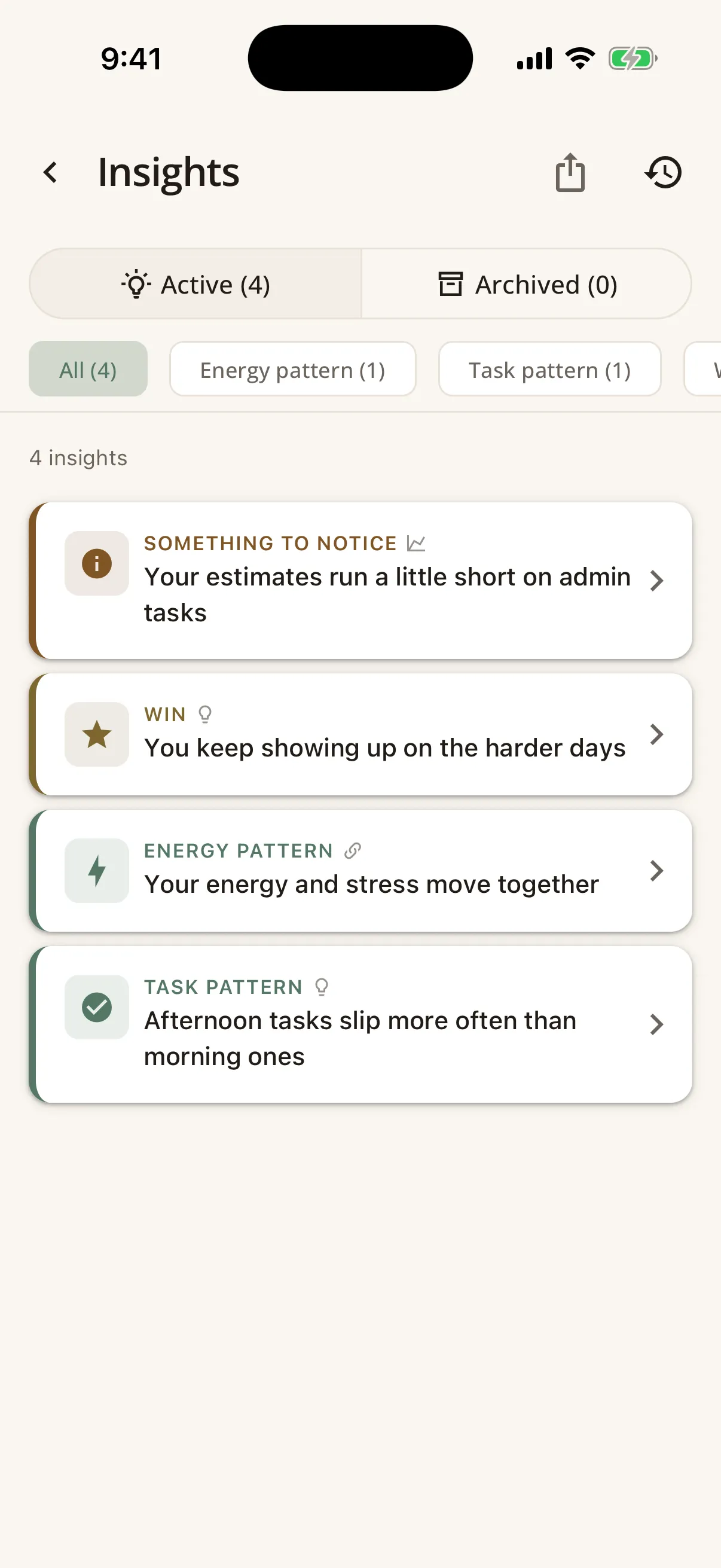
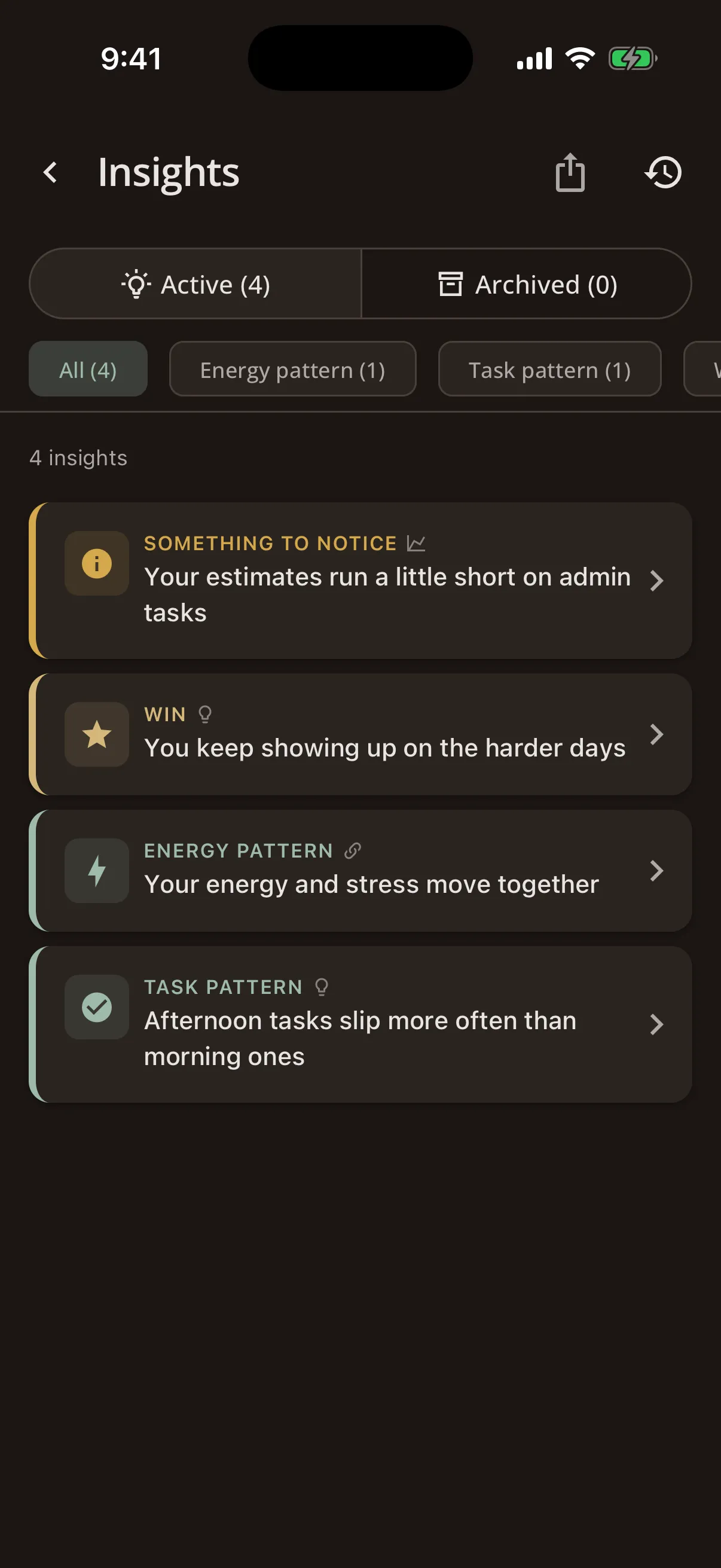
Over time, Steward learns from your patterns and surfaces insights: observations about how you work best, what drains you, and where your estimates are off.
Insights
Insights are generated from your check-ins, completed tasks, and focus sessions. They might notice that most of your tasks get finished on Tuesday mornings, or that admin tasks consistently take longer than planned. You can browse, archive, or apply insights directly to your Brain Operating Manual.
Brain Budget
The Brain Budget gives you a weekly view of your capacity: how much you planned, how much you completed, and how your wellbeing tracked alongside it. It's a picture of the week, not a score, and it helps you plan more realistically over time.
Calibration
Calibration analyses your planning accuracy. Are certain days carrying more than they can hold? Do some tasks take longer than the plan allows? It generates adjustment suggestions that you can accept or dismiss. Steward gets better at understanding you, week by week.
Privacy & Your Data
- Local-first: Your data lives on your device. There's no cloud sync, no server storing your tasks and thoughts.
- No tracking: No ads, no third-party trackers in the app. We use cookieless analytics (Plausible) on the website only.
- AI is opt-in: You choose whether to use AI features, and you control exactly what context is shared.
- Your data, your control: Export everything at any time. Delete it by uninstalling the app.
- Encryption: Your local database is encrypted (SQLCipher). Sensitive settings use secure device storage.
For full details, see our Privacy Policy.
Need help?
If something isn't working as expected or you have questions, we'd love to hear from you:
- Email: [email protected]
- Use the feedback option in Settings → About within the app
Thank you for being part of the Steward beta. Your feedback shapes what Steward becomes.
Not in the beta yet?
Join the waitlist and we'll send you an invite when a place opens up.
We’ll respect your inbox and only email when there’s something worth sharing.